Automatically Calendar Court Hearings with PipeDrive and Google Calendar
Oct 19, 2025
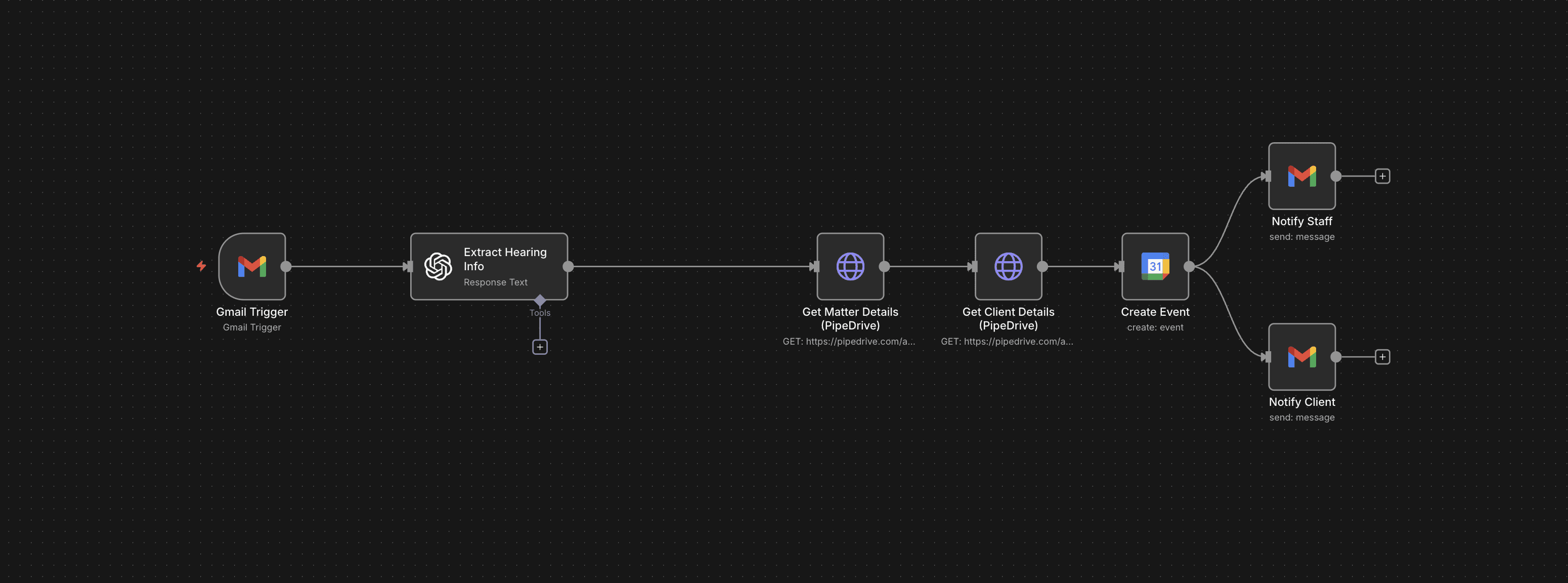
Calendaring court hearings is one of the easiest tasks that law firms can automate. This takes the burden off your staff to manually look for every email, create calendar event, and send multiple internal/external notifications.
Why automate this?
Reduces manual data entry errors: Entering information manually can lead to mistakes, which often go unnoticed until it's too late.
Save time every week: Even “quick” calendaring takes time: open the email, confirm the case, find the date/time, confirm location/Webex link, create event, double-check it, notify the team/client.
Scales with volume: As your firm grows, this automation scales easily. You don't have to hire more staff to keep up.
What tools do I need?
We use the following softwares in the example but this works for any CRM, email provider, internal workspace, or calendaring software.
n8n (automation platform)
Gmail (Outlook works the same here)
OpenAI (ChatGPT)
Google Calendar (or Outlook Calendar)
PipeDrive (Airtable, Google Sheets, Lawmatics, and others all work)
Gmail for notification (You can also use Slack, Teams, Whatsapp. Anything your team uses internally)
How does this automation work?
Here's an explanation of how each node in the screenshot works:
Gmail Node: This automation will check your inbox every minute for any incoming court hearing emails
OpenAI Node: This sends the court hearing email to ChatGPT and asks it to give key information like cause number, hearing date/time, Webex/Zoom links, etc.)
PipeDrive Node #1: It checks PipeDrive (or your CRM) to gather information on the matter.
PipeDrive Node #2: It checks PipeDrive (or your CRM) to gather information on the client.
Google Calendar Node: It creates an event in your calendar with the relevant event title, event description, event location, and event time. It also automatically invites your client to the event via email.
Gmail Node (Staff): It sends an email to your staff about the created event.
Gmail Node (Client): It sends an email to your client about the created event. This is also a good chance to attach any documents that may be helpful for them to have prior to the hearing.